Files and tasks
Keep each file with the record it describes, and each repair with the room or space where it is needed.
On this page
Where files live
A file always belongs to a property. It can also be attached to a room, an agreement, a tenant, a unit, or a parking space. A tenant’s files include those attached to their agreements. A property shows everything filed under it.
- Files in the workspace navigation lists files across every property, with Property and Category filters. Pictures show as thumbnails.
- The Files tab in a property’s record panel lists that property’s files.
- The Files tab on any Board card lists that record’s photos and files.
Add a file
- Choose Add a file
In Files, choose Add a file. To file against an agreement, open the agreement and choose the paperclip beside Files; the form opens already attached to it.
- Choose File or Link
File uploads a PDF, PNG, JPG, or WebP up to 20 MB. Choose a file or drop one on the form. Link stores a full HTTPS link to a document kept elsewhere.
- Title, categorize, and place it
Enter the Title and Category. Attached to shows where it will be filed. Choose Change to pick the Property and, under Attach to, Property files, a room, an agreement, a tenant, or a parking space. Then choose Use this location.
- Save
Add Notes if useful, then choose Add file. When you started from an agreement, the button reads Save file or Attach file.
| Field | Example | What it means |
|---|---|---|
| Title | Signed rental agreement | Filled in from the file name. Change it to something you will search for. |
| Category | Receipt | Rental agreement, Addendum, Inventory, Receipt, or Other. |
| Notes | Version 2, signed by both | Optional. The version, relevant dates, or anything worth knowing later. |
Add photos and files from a card
- Select the card and open Files
On the Board, select a property, unit, room, person, or parking card and choose the Files tab.
- Drop or choose files
Drop files on Add a photo or document, or choose Choose files. Pictures join the photo grid. Anything else is filed as a document attached to that card, with the category Other.
- Tidy up
Choose Make cover to pick the card’s main photo. Use File as a document for a picture that is really paperwork, such as a photographed receipt.
Find and manage files
- Search by title, file name, link, or notes. Filter by Category, and by Property in the workspace view.
- Selecting a PDF or image opens a preview. Other files open File details.
- In File details, choose Replace to upload a new file, or Change to move it to another room, agreement, tenant, or parking space.
- Remove from library removes Roomline’s reference only. The original file or external document is not deleted, and Undo can restore the reference.
Track maintenance where it happened
- Log a repair
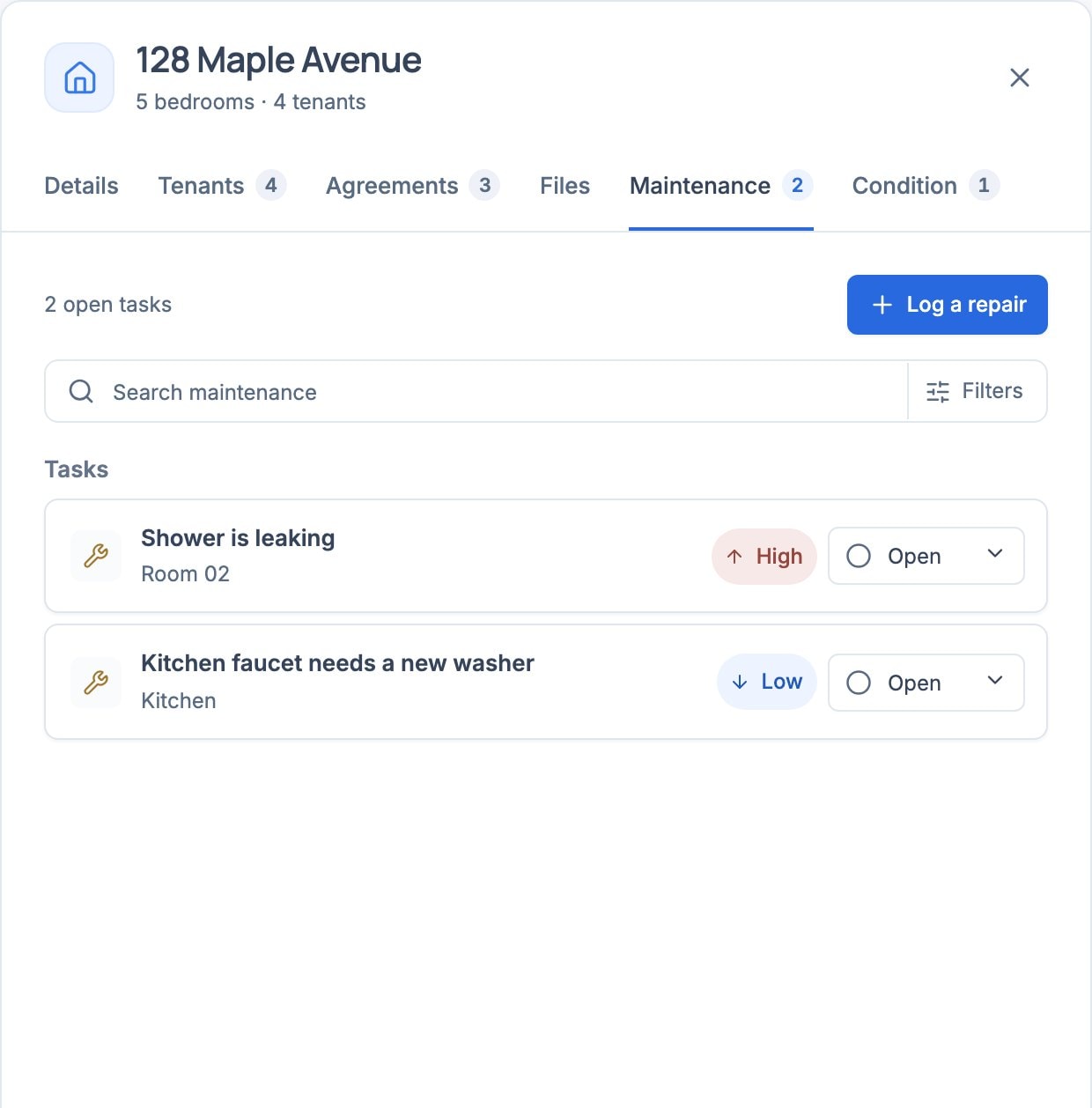
Choose Log a repair at the top of the property’s Overview or on its Maintenance tab. From a room’s Records tab, choose No open tasks (Log a task once it has one) to start one for that room. On the Board, Add, then Task creates New task 1 with no location.
- Describe the work
Enter What needs attention?, the Room or area, Priority, and Status. Add what you know: a Due date, the Cost (an estimate until it’s done), the Contractor and their Phone, and which tenant reported it under Reported by. Then choose Log repair.
- Add before and after photos
Select the task card and add photos in Details. New photos are filed as before while the task is open and after once it’s done; select a photo’s tag to move it.
- Link it to a place
Choose a room or parking space under Location, choose Property-wide, or drag from the task card to a room, parking space, or property on the Board.
| Field | Example | What it means |
|---|---|---|
| Priority | High | Low, Medium, or High. Rooms list their open tasks by priority, highest first. |
| Due (optional) | 2026-10-03 | Once it passes, the task reads Overdue and moves to the top of the list. |
| Contractor / Phone | Joe’s Plumbing | Who is fixing it. The task panel has a call button beside the phone number. |
| Reported by | Jamie Chen | Me, or a current tenant. The Maintenance tab can filter by who reported it. |
Close out work
In the task panel, choose Start work when the job begins and Mark done when it’s finished; Reopen undoes it. To record what it cost, enter the Cost and choose Save changes.
A done task leaves the Board but stays on record: under Completed in the room’s Records tab, and under Done in the Maintenance tab’s Status filter, headed Done this year with the total spent.
Delete task (or Remove) deletes the task and its photos. Use Done instead to keep the history.
Keep condition records
- Open the Condition tab
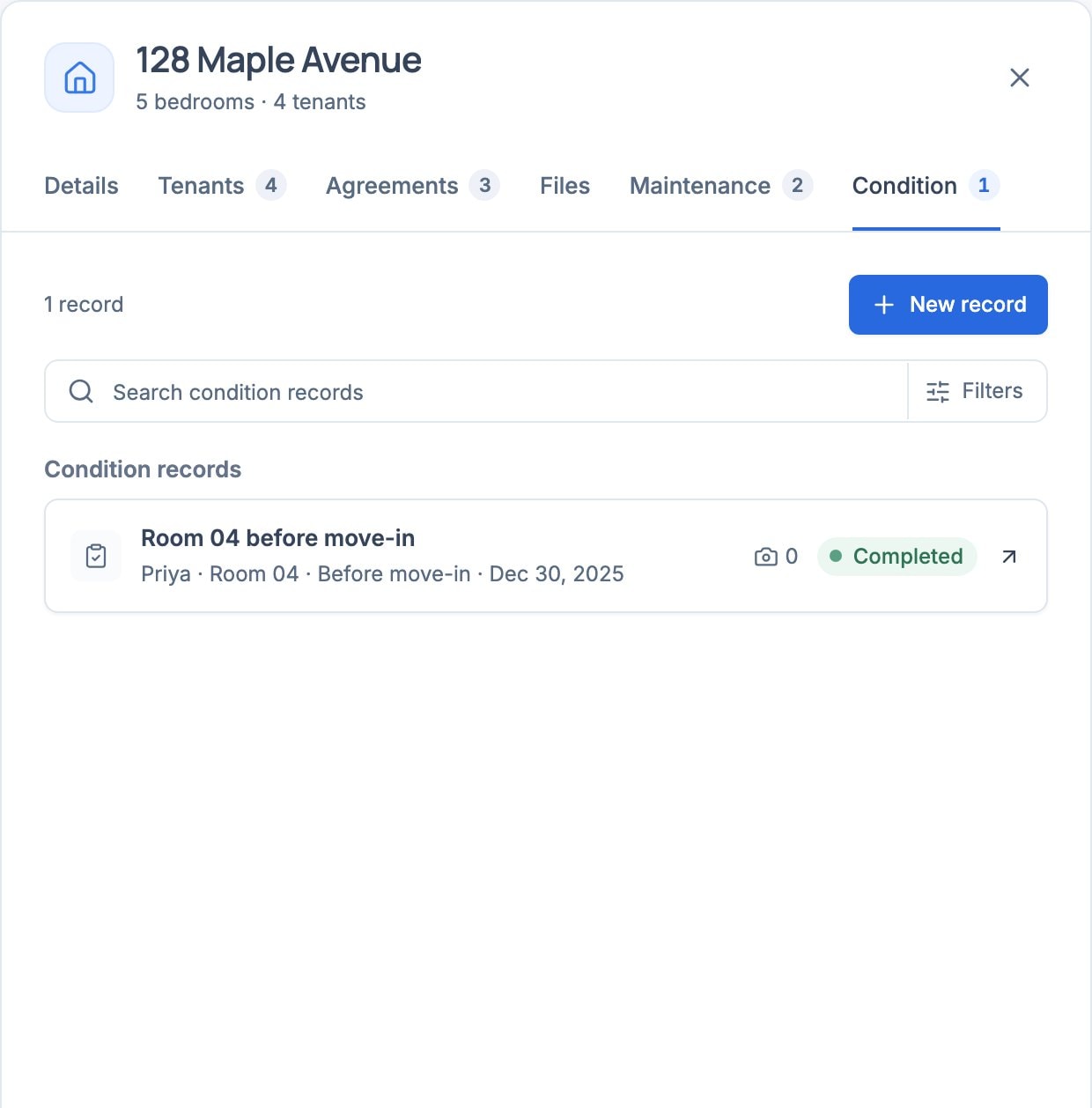
Select the property card on the Board and choose Condition, then New record. A person’s Records tab also links to their condition records.
- Set up the record
Enter the Record title, choose a Record type (Before move-in, Move-out, or Routine inspection), link the Agreement, and set the Record date and Inspector / manager. Tick the Areas to document and choose Create record.
- Walk each area
Choose a condition and add photos; on a phone, the photo button opens the camera. Then choose Next area. For an area marked Needs attention, Log a repair for this area starts a task with its note and first photo.
- Compare over time
On a move-out record, choose Compare with move-in to see the two side by side. From the Condition tab, Compare works for any two records.
Current limits
If something does not look right
The upload is refused
Files must be a PDF, PNG, JPG, or WebP up to 20 MB, uploaded one at a time in the form. Links must be complete HTTPS addresses without a username or password in them.
A file is missing from a room
A room shows files attached to it and files from agreements that cover it. Open File details and use Change to attach the file to the right room or agreement.
A finished task disappeared from the Board
Done tasks leave the Board. Find them under Completed in the room’s Records tab, or set the Maintenance tab’s Status filter to Done.
The Files, Maintenance, or Condition tab is missing
Check Tools in Settings. Switching a tool off hides it, but the records are not deleted.