Track rent
See who paid and who is late. Record cash, check, Zelle or Venmo yourself, or link a bank and confirm the deposits Roomline suggests. Roomline never moves money.
On this page
Read the ledger
Choose Rent, then Ledger. Each current agreement is a row, with the last two months, this month and next month. Late rows come first. A property’s Collected and Late figures open it too.
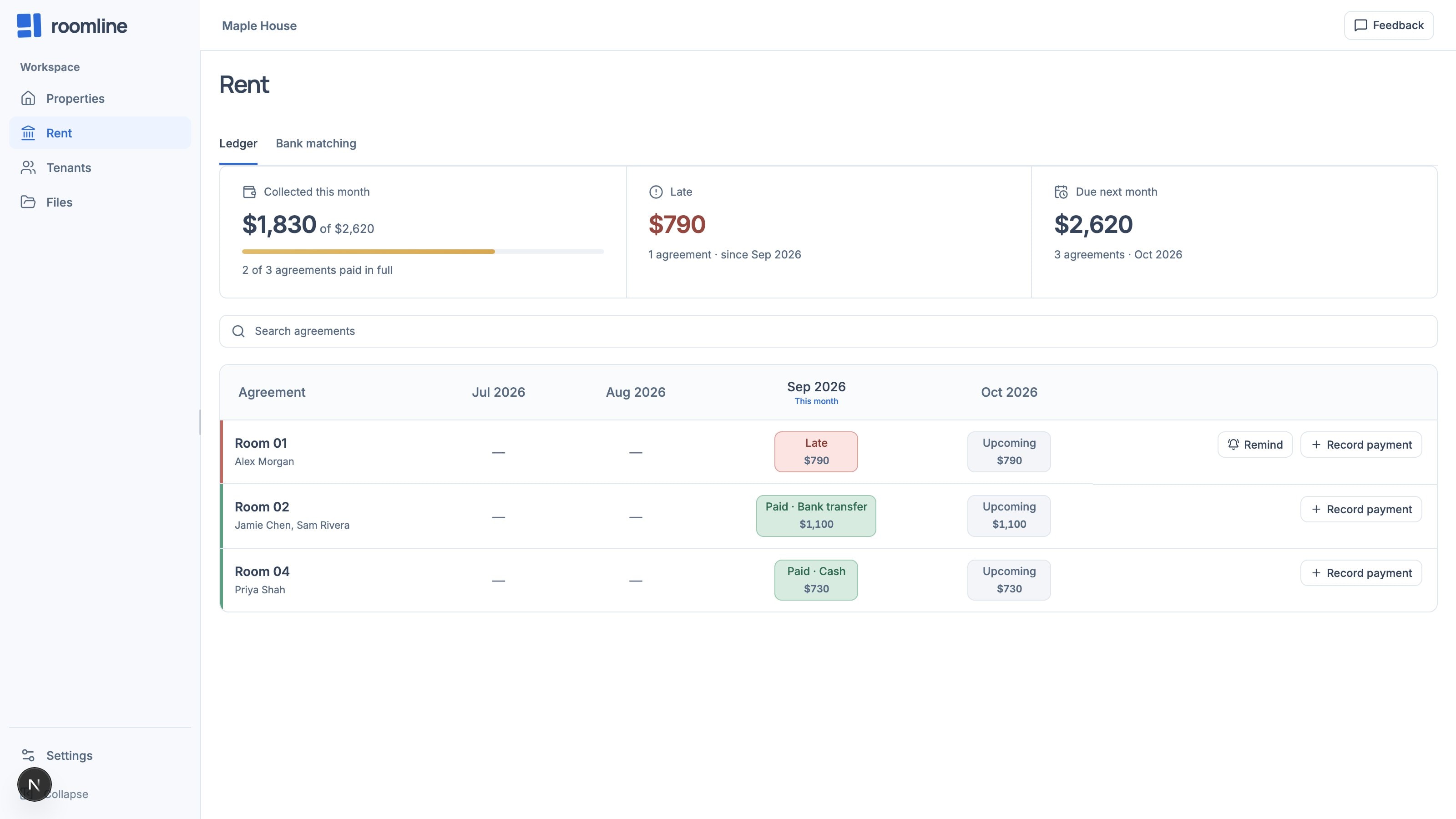
Record a payment
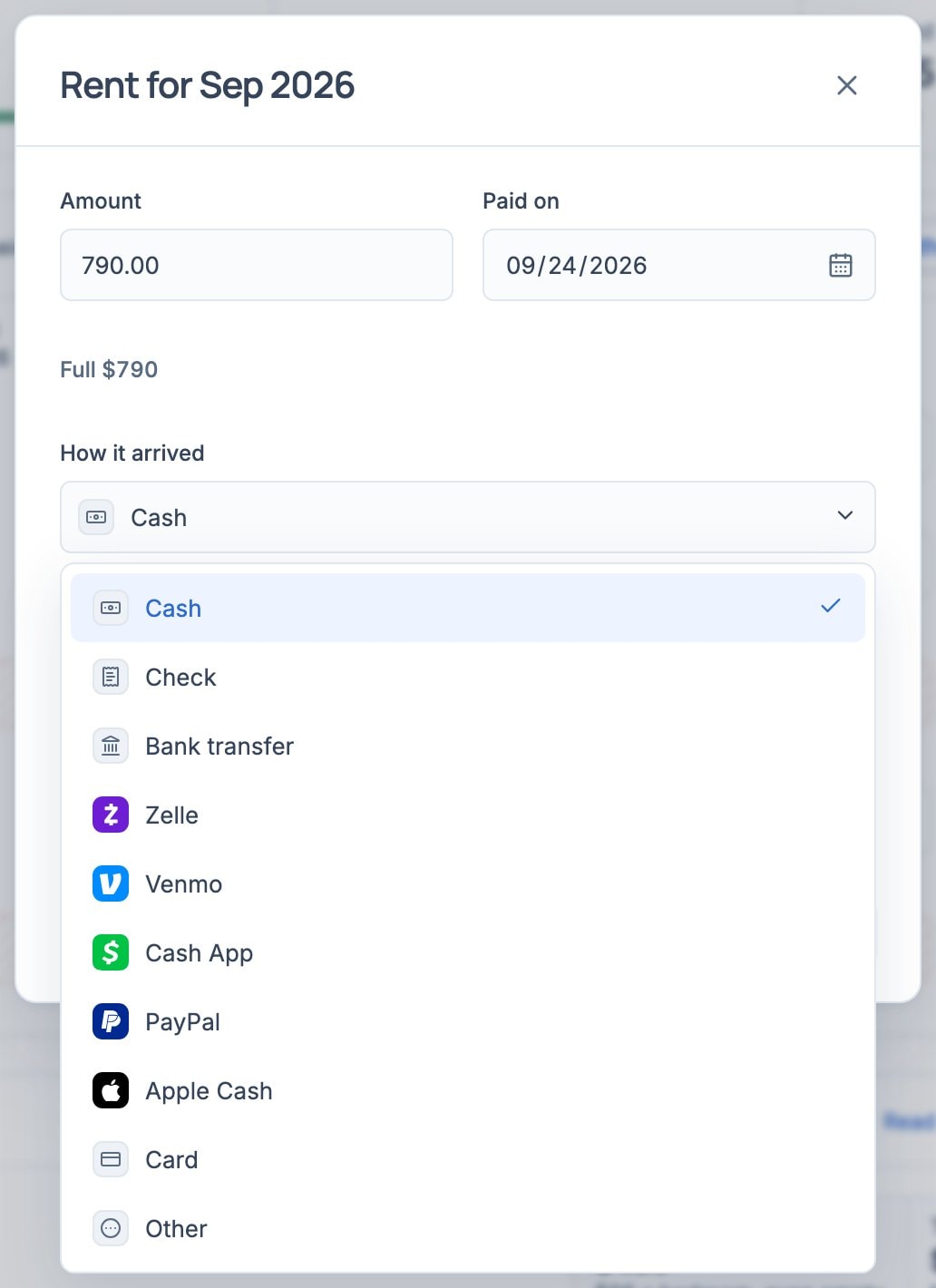
For rent your bank doesn’t show: cash, checks, and Zelle, Venmo or Cash App, which Roomline can’t connect to.
- Choose Record payment
On the agreement’s row it opens the oldest month still owed. Select a month tile for another month.
- Fill it in
Amount starts at what is owed; choose Full $730 or a housemate’s share such as Jamie $550. Check Paid on and How it arrived, then choose Record payment.
- Send a receipt, or fix it
Open the month again. Under Recorded manually, choose Copy receipt or Edit.
Remind a late tenant
- Choose Remind
It’s on late ledger rows, under Needs attention on the Overview, and in an agreement’s Rent panel. On a shared agreement, pick the housemate; each is asked for their share.
- Send it yourself
The month, amount and due date are filled in. Edit it, then choose Copy, Email or Text. Email and Text appear when the tenant has an email or phone on file.
- Add pay links once
Add your Venmo, Zelle, Cash App or PayPal handle in Settings › Rent, under How tenants pay you. Reminders then end with each one; Venmo, Cash App and PayPal links fill in the amount.
How monthly rent states work
A month counts confirmed deposits and payments you recorded. AI assistants use the names in brackets.
- Paid (settled): received in full.
- Part paid (partial): less than expected arrived. It stays Part paid after the due date.
- Waiting on you (review): a deposit is suggested but not confirmed. The ledger shows To review.
- Not due yet (pending): not late yet. The ledger shows Due with the date, or Upcoming.
- Late (late): nothing arrived or was suggested by the due day plus the grace period (Settings › Rent, 5 days unless changed before you start tracking).
- Not tracked (off): a dash. The agreement isn’t tracked, or the month is before tracking started.
Connect a bank
Optional. Roomline reads deposits and suggests which agreement and month each pays. You confirm every match.
- Choose Bank matching, then Connect a bank
Sign in to your bank in Plaid’s secure window and pick the account where rent arrives.
- Manage banks
Choose Banks to Sign in again, Add another bank, or disconnect one.
Turn on matching
- Every agreement
On Bank matching, choose Rules, tick the agreements or Turn all on, then choose Add 3 rules (or however many).
- One agreement
Choose Track rent on its ledger row, or Turn on rent matching in its Rent panel.
- Tell identical rents apart
If two agreements expect the same amount on the same day, setup asks for part of each payer’s name as your statement shows it.
Review deposits
Decisions change Roomline’s record only, never your bank. The Bank matching tab’s count is what’s left to review.
- Confirm or correct
Each suggestion has a badge: Matches, Probably or Check. Choose Rent to confirm, Change for another agreement or month, or Not rent.
- Assign what no rule claims
No rule claims this shows the closest rule, or, with AI suggestions on in Settings › Tools, Looks like and an agreement. Choose Assign, pick Rent for and Which month it covers, then Confirm as rent. Roomline warns if that month is already paid. Choose Rule to match similar deposits from now on.
- Change your mind
On the Rent or Not rent tab, choose Reopen, or Change to move rent.
Fine-tune a rule
To adjust a rule, open the agreement’s Rent panel, choose Rules, then Edit. Amount, Payer name, Reference and Account decide a match; Arrives only affects confidence. For housemates who pay separately, choose Add another payer.
What Roomline keeps from your bank
Transactions only: amount, date, payer name, description and account. Never balances or the ability to pay.
To disconnect, choose Banks, then the Disconnect icon. Roomline deletes that bank’s transactions and your decisions about them, so months they paid show as owed again. Recorded payments stay.
If something does not look right
A month shows Late, but the tenant paid
Record the payment, or confirm its deposit under To review.
Deposits arrive unmatched
Choose Set up on the Bank matching notice, or Assign one-off payments.
A bank asks you to sign in again
Choose Banks, then Sign in again. Until then, no new deposits arrive.
There is no Connect a bank button
Bank linking is off in the shared demo.