Monday morning, coffee still hot: "who’s late on rent this month?" and the answer comes back before you’ve finished the sentence. If you already use an AI assistant for email and planning, it can answer questions about your rooms too. Roomline’s MCP connection lets an assistant such as Claude or ChatGPT read your property records and answer who’s late, which rooms are empty, or which agreements end soon. This post covers what you can ask, what the assistant can and can’t change, and how to set it up.
Connect read-only first, ask the three everyday questions, and add write access only when you want the assistant to record changes you confirm.
What MCP is, in plain language
MCP, the Model Context Protocol, is a standard way for an AI assistant to use tools from another service. Roomline provides a set of tools, such as rent status, room board, and upcoming dates. When you ask your assistant a question, it decides which tool to call, gets the answer from Roomline, and explains it to you in normal language.
You don’t need to paste spreadsheets into a chat or describe your tools. The assistant discovers what Roomline offers when it connects. Clients that accept a custom Authorization header use a token you create in Settings. Hosted connectors that sign in instead, like custom connectors in the Claude and ChatGPT apps, connect through a Roomline sign-in and approval page where OAuth sign-in is enabled; that route is read-only.
What you can ask
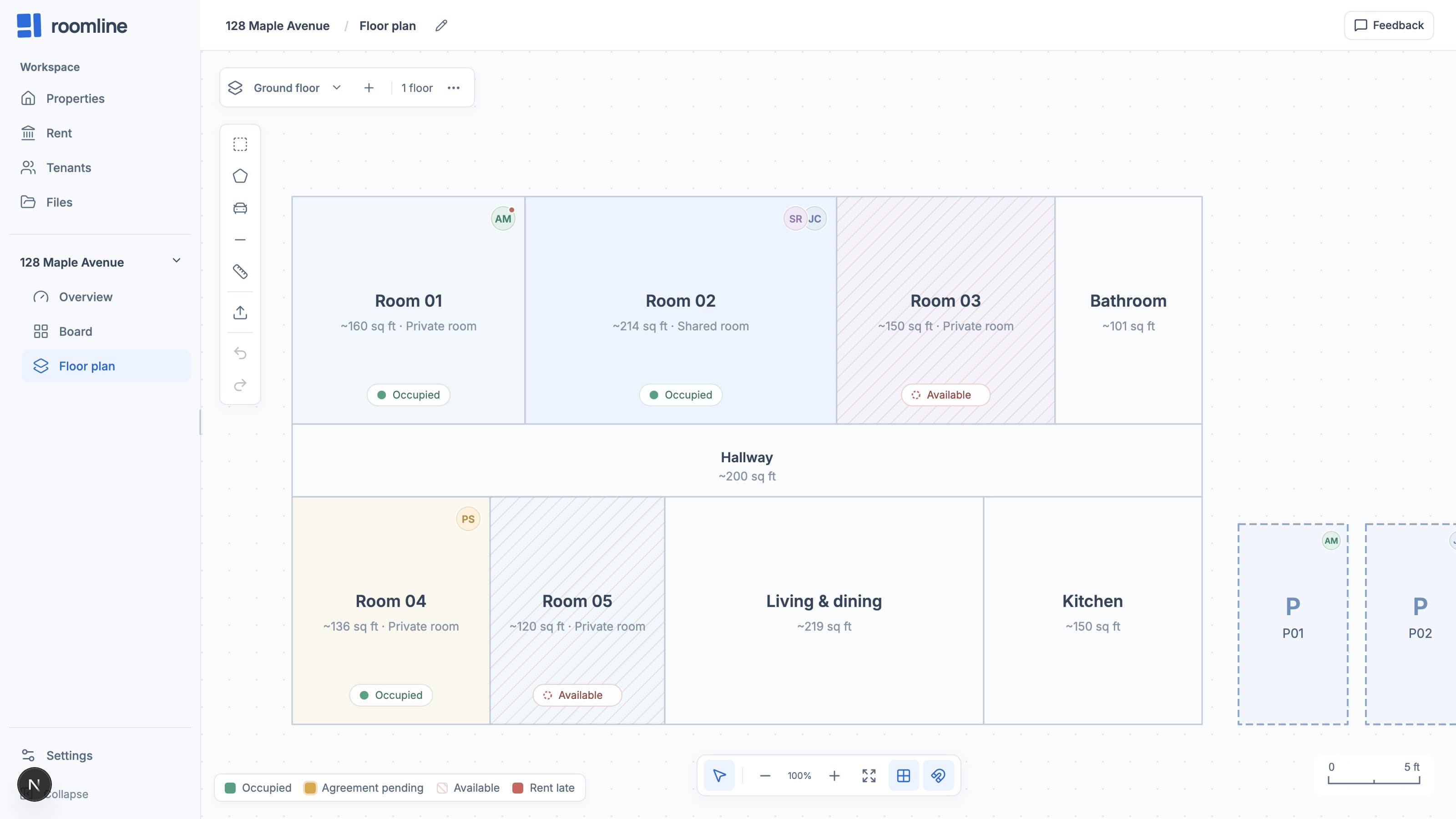
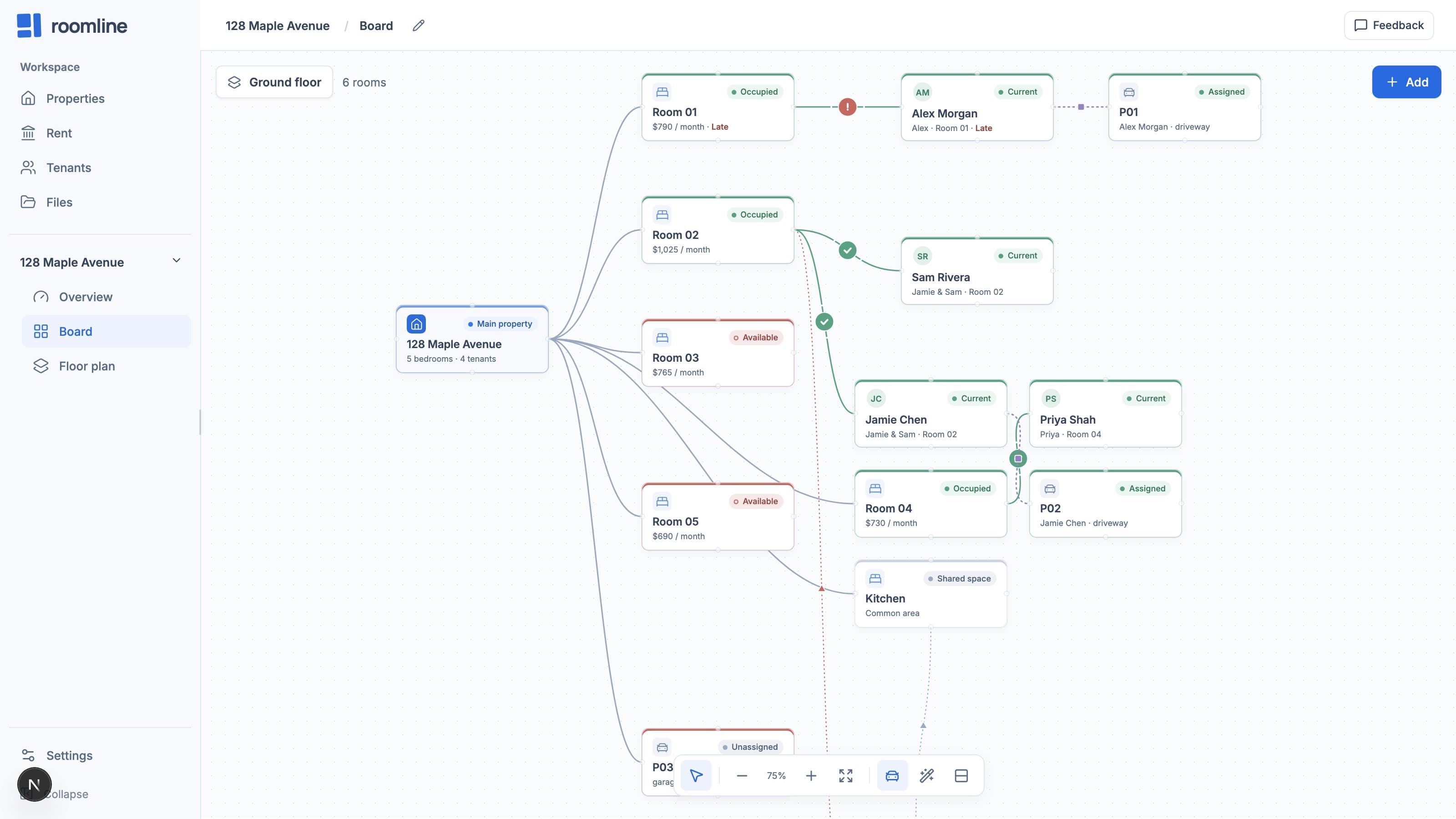
Three summary tools cover the everyday questions. They use the same rules as the Roomline board and floor plan, so the assistant and the app agree about which rooms are occupied and whose rent is late.
For anything else, the assistant can list and read individual records: properties, floors, rooms, tenants, agreements, parking, maintenance, documents, and condition records. Documents come back as their stored details, not the contents of the file.
| Question | Tool | What comes back |
|---|---|---|
| Who is late on rent? | roomline_rent_status | Late and part-paid agreements with the amount still owed, month by month |
| Which rooms are vacant? | roomline_room_board | Every bedroom with its status, tenants, asking rent, agreement end date, and open repairs |
| What’s coming up? | roomline_upcoming | Agreements starting and ending, notice dates, walkthroughs, and open repairs by priority |
A sample conversation
Here is what a Monday check-in might look like, using the fictional Maple House. You ask: who is late on rent this month? The assistant calls the rent status tool and answers: one agreement at Maple House is overdue. Alex Morgan, Room 01, $790. Jamie Chen and Sam Rivera in Room 02 paid $1,100 by bank transfer, and Priya Shah in Room 04 paid $730 in cash.
You ask which rooms are empty. The assistant reads the room board: Room 03 is available at $765 and Room 05 at $690. You ask what’s coming up in the next 60 days. Alex’s Room 01 agreement ends November 30, with a notice reminder on October 31 based on its 30-day notice period, and a high-priority repair, a leaking shower in Room 02, is still open.
Then say October comes and Priya hands you $730 in cash again: tell the assistant to record it. With a write token, the assistant proposes recording $730 against the Room 04 agreement for October and asks you to confirm. Once recorded, the payment counts toward rent status, and Roomline marks it as recorded by the AI assistant. With a read-only token, that tool isn’t offered at all.
Rent status relies on the rent rules you set up for bank matching or on payments you record. An agreement with no rent rule shows as untracked rather than late.
The safety model
Access starts read-only. Each token belongs to your account’s workspace and is either read-only or read and write. Read-only is the default, and write access is something you choose when you create a token. You can revoke a token at any time, and new requests with it stop working.
Writes are limited and checked. A write token can create and update properties, floors, rooms, tenants, agreements, parking spaces, and maintenance requests, and record a rent payment you received. Every write must include the revision from a recent read; if the records changed in the meantime, the write is rejected and the assistant has to read again. There are no tools to delete records, send messages, move money, upload files, or sign documents.
Keep confirmation on. Turn on tool confirmation for writes in your AI client so you approve each change. Roomline validates every change the same way the website does, but validation is not a human approval step.
Know where your data goes. When the assistant reads your records, those records go to the AI provider you chose, under that provider’s data terms. Review them before connecting. Roomline also tells assistants to treat names, notes, and document details as data, never as instructions.
- Read-only by default; write access is opt-in per token
- No deleting, messaging, payments, file uploads, or signing
- Every write needs a current revision, so stale edits are rejected
- Confirm each write in your AI client
- Records you read are shared with your chosen AI provider
- Revoke a token from Settings at any time
Set it up in five minutes
The MCP guide in Roomline’s docs at /docs/mcp has the connection address and client details. The short version is below. Start read-only and use it for a couple of weeks before deciding whether you want the assistant to record anything.
The assistant answers when you ask. Nothing in Roomline watches your rent in the background or contacts residents on your behalf.
- In Roomline, open Settings, then MCP access
- Label the token for your client and create it read-only
- Copy the token; it is shown only once
- In your AI client, add Roomline’s MCP address with the header Authorization: Bearer and your token
- Store the token in the client’s secret settings, not in a shared file
- Ask: summarize my Roomline workspace
Common questions
Can the AI assistant change or delete my Roomline records?
Not unless you create a token with write access; tokens are read-only by default. A write token can create and update records and record a rent payment you received, but there are no tools to delete records, send messages, move money, upload files, or sign documents. Turn on tool confirmation in your AI client so you approve each write.
Can an AI assistant see my tenants' personal information?
Yes. When it reads records it sees the names, notes, and details in them, and those records go to the AI provider you connected, under that provider’s data terms. Documents come back as their stored details, not the file contents. Review your provider’s terms before connecting.
Which AI assistants work with Roomline?
Any MCP client that lets you add a custom server with an Authorization header can use a Roomline token. Custom connectors in the Claude and ChatGPT apps can connect through Roomline’s sign-in and approval page where OAuth sign-in is enabled, and that route is read-only. The MCP guide at /docs/mcp has the connection details.
Why does the assistant say rent is untracked instead of late?
Rent status needs something to compare against: a rent rule set up for bank matching, or payments you record. An agreement with no rent rule shows as untracked rather than late. Add a rent rule or record the payments, and the assistant’s answer will follow the same rules as the Roomline board.